
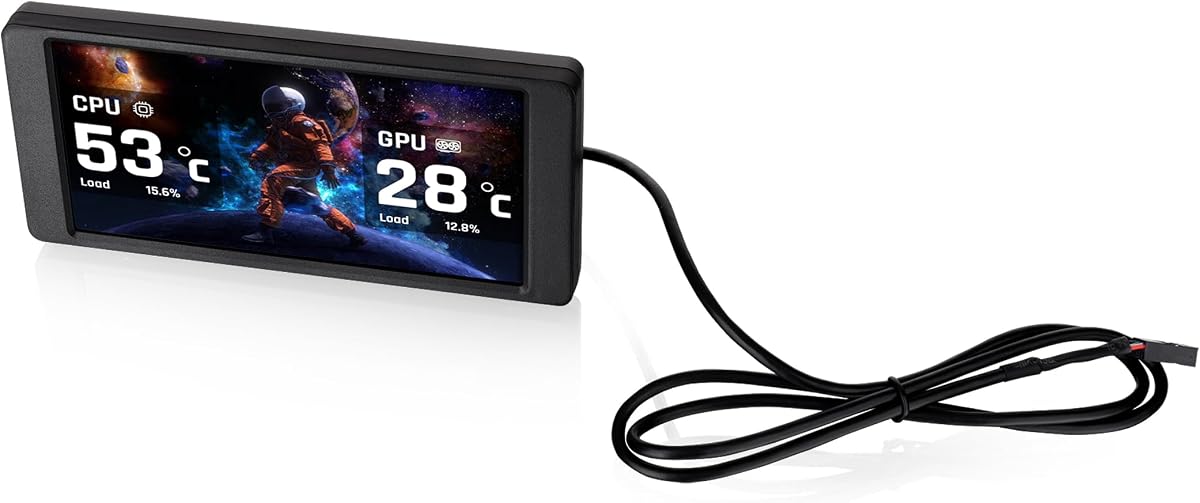
Thermalright Trofeo Vision
4.3Editor score
9.16-inch wide LCD screen
Plug and play USB-C
Compact stylish build design
This guide compares the top LCD Screen for PC Case options to help you choose the best display for monitoring stats and customizing your gaming setup.
Modern PC builds have evolved beyond simple lighting and fans. Enthusiasts now seek displays that show real-time system data or custom visuals directly inside the chassis. An LCD Screen for PC Case transforms your build into a dynamic showcase.
We evaluated ten leading models based on resolution, software support, and mounting flexibility. Each product offers unique features ranging from touch capability to magnetic installation. Our analysis highlights strengths and weaknesses to guide your decision.
Each pick below details specific capabilities and ideal use cases for different builders. Note that availability and costs may shift over time. Always check current listings before purchasing to ensure compatibility with your specific hardware setup.
4.3Editor score

4.4Editor score

4.2Editor score
This side-by-side comparison highlights the key specifications and features of all ten models reviewed. Use this table to quickly identify which display fits your case size and software needs.




The Lian Li SM088X stands out as a top choice for builders seeking versatility. With an 8.8-inch display and robust software support, it delivers clear visuals and custom themes easily. Its rating reflects strong user satisfaction regarding build quality and ease of use.
We may earn a commission when you buy through this link, at no additional cost to you.
This screen functions independently without needing GPU ports. You can view hardware stats or custom videos via a simple USB connection. The L-Connect 3 software allows deep customization of themes and lighting effects. This makes it ideal for those who want a unified ecosystem.
While the installation guide is detailed, care must be taken to use the correct screws. Using the wrong screw can damage the stand. However, once mounted, the screen is secure and adjustable. The ARGB lighting adds a cohesive aesthetic touch to any build.
If you value flexibility and a polished look, this model is highly recommended. It suits various case types and offers a standalone display mode. For enthusiasts wanting to showcase stats without cluttering the desktop, this is a standout option.
L-Connect 3 allows you to create custom layouts and sync lighting across devices.
Use the screen to show system info without occupying valuable GPU video ports.
We may earn a commission when you buy through this link, at no additional cost to you.
The darkFlash V92 offers a dedicated sensor panel experience for case builds. Its 9.2-inch ultra-wide display provides bright visuals suitable for viewing detailed stats. Users appreciate the free software that supports custom widgets like weather and stock news.
We may earn a commission when you buy through this link, at no additional cost to you.
Connection options are flexible, allowing USB-C or internal 9-pin links. This keeps GPU outputs free for gaming. The slim aluminum body fits neatly into cases with adequate clearance. It is designed specifically for ATX or micro-ATX setups.
A limitation is that Station Space software must remain active. This might use system resources for some users. Also, it is not compatible with macOS or Linux systems. However, for Windows gamers, the features are extensive.
Choose this if you want a dedicated monitoring tool with broad widget support. It is a solid choice for builders who prioritize visual customization. Just ensure your case has enough space for the installation.
Connect via external USB or internal motherboard header for flexibility.
Display real-time data like weather and stock news alongside system stats.
We may earn a commission when you buy through this link, at no additional cost to you.
WOWNOVA simplifies installation with a single cable connection. This makes it ideal for users who want minimal hassle. The desktop mode allows it to function as an extended screen. It is also a great option for system monitoring inside a case.
We may earn a commission when you buy through this link, at no additional cost to you.
Users can enjoy dynamic video themes and custom layouts easily. The software is developed to be user-friendly with drag-and-drop editing. Brightness adjustment ensures comfort during long gaming sessions. This focus on usability makes it a popular choice.
The screen is slightly smaller than some competitors. However, the high resolution ensures text remains readable. If you prefer a white aesthetic, this fits perfectly. Otherwise, check other models for different colors.
For quick setup and extended display features, this is a strong contender. It balances simplicity with enough features to keep you engaged. Recommended for those who value efficiency in building.
Switch to desktop mode to use it as a secondary monitor easily.
Create custom layouts with drag-and-drop tools for creativity.
We may earn a commission when you buy through this link, at no additional cost to you.
This screen is designed specifically for the Hyte Y60 case. It fits the panel perfectly without extra screws. The 12.6-inch display offers a wide viewing area for stats. It also includes speakers for audio output without extra gear.
We may earn a commission when you buy through this link, at no additional cost to you.
Using HDMI allows it to act as a true secondary monitor. The IPS panel provides sharp visuals and good color accuracy. This makes it suitable for gaming and monitoring simultaneously. The response time is quick for smooth visuals.
Installation is straightforward with included tools. However, it is limited to the Y60 case. If you have a different chassis, check compatibility first. It is a premium choice for Y60 owners.
For Hyte Y60 builders, this is the definitive screen solution. It combines audio and video in one sleek package. The high resolution ensures clarity even at the large size.
Dual speakers provide audio output without needing external devices.
Fits the Y60 panel perfectly with included mounting hardware.
We may earn a commission when you buy through this link, at no additional cost to you.
The Hosyond model brings touch capability to PC case displays. This allows for direct interaction with the screen. It supports multiple systems including Windows and Linux. The plug-and-play design simplifies setup for most users.
We may earn a commission when you buy through this link, at no additional cost to you.
Resolution is sharp and color reproduction is vibrant. It can be used with AIDA64 for monitoring. However, you must install AIDA64 yourself. This is a minor step but worth noting before purchase.
Power consumption is low, making it energy efficient. It works well with various single-board computers too. This flexibility makes it a great option for developers and gamers alike.
Choose this if you want a touch interface for your stats. It offers a unique interactive experience. Just be prepared to download software separately for advanced features.
Use the capacitive touchscreen to control display features directly.
Compatible with Windows and Linux systems for broad support.
We may earn a commission when you buy through this link, at no additional cost to you.
Thermalright offers a cost-effective solution for case monitoring. The screen is sharp and fits well in modern cases. Users love the simplicity of USB-C connection. It is an excellent entry point for enthusiasts.
We may earn a commission when you buy through this link, at no additional cost to you.
The TRCC software allows basic customization. You can change themes and monitor temps easily. It supports real-time tracking of key components. This is enough for most casual users.
Build quality is solid for the price point. It feels durable and looks sleek. If you want value without compromising too much on features, this is ideal.
For budget-conscious builders, this is the top pick. It delivers core functionality efficiently. Keep expectations in check for advanced customization needs.
Get high resolution and monitoring without breaking the bank.
Connect quickly with a standard USB-C cable for data and power.
We may earn a commission when you buy through this link, at no additional cost to you.
This kit is tailored for Thermaltake case owners. It integrates seamlessly with TTRGB software. The 6-inch display shows key stats clearly. It supports video playback and custom backgrounds for personalization.
We may earn a commission when you buy through this link, at no additional cost to you.
You can upload up to 20 custom graphics. This allows for unique looks without extra cost. However, resolution is lower than competitors. This may affect clarity for small text.
Installation is straightforward with provided cables. It is designed for specific View series cases. Ensure your case matches before buying. It is a solid accessory for TTRGB fans.
If you are already in the Thermaltake ecosystem, this is a natural choice. It expands the visual experience of your build. Just note the resolution limitations.
Sync lighting and display through the TTRGB software platform.
Upload your own images or videos to personalize the display.
We may earn a commission when you buy through this link, at no additional cost to you.
GeeekPi offers a large touch screen for Y60 cases. It supports up to 10 points of touch. This is great for interacting with complex interfaces. The dual speakers add another layer of functionality.
We may earn a commission when you buy through this link, at no additional cost to you.
FHD resolution ensures sharp visuals. It works out of the box on Windows and macOS. Just remove the protective film before first use. This ensures best touch response.
Mounting is easy with included tools. However, it adds weight to the case. Ensure your stand or brackets are strong. It is ideal for media consumption too.
For a large interactive screen, this is a strong option. It bridges the gap between a PC monitor and a case display. Great for tech-savvy users.
Enjoy multi-touch capabilities for smooth and responsive control.
Built-in speakers allow audio playback without extra wires.
We may earn a commission when you buy through this link, at no additional cost to you.
This model features a magnetic suction design. Installation is quick and requires no screws. The metal frame provides durability and looks premium. It is perfect for users who hate drilling.
We may earn a commission when you buy through this link, at no additional cost to you.
Display quality is excellent with accurate colors. TRCC software manages content and monitoring. It supports dynamic themes and images. The setup is simple but requires software installation first.
The magnetic mount is secure but fixed. It might not suit all case types. Check compatibility before buying. It is a solid choice for specific builds.
If you want hassle-free installation, this is it. The magnetic system is innovative and functional. Great for those who value convenience over flexibility.
Use magnetic suction to attach the screen without tools.
A metal frame adds durability and a sleek aesthetic.
We may earn a commission when you buy through this link, at no additional cost to you.
This is a smaller version of the Trofeo Vision. It is designed for compact setups. The magnetic panel allows easy adjustment. It supports custom images for personalization.
We may earn a commission when you buy through this link, at no additional cost to you.
Resolution is lower than larger screens. This may make small text hard to read. But for simple stats it works well. It is a budget-friendly option.
Installation is straightforward with magnetic backing. Ensure your case can hold it securely. Software is needed to control display functions.
Choose this for small cases or water coolers. It fits where larger screens do not. Keep expectations realistic for resolution.
Fits into tight spaces where larger displays cannot.
Upload DIY static or dynamic images via TRCC software.
We may earn a commission when you buy through this link, at no additional cost to you.
Choosing a PC case LCD screen involves considering several factors. This guide helps you find the right fit for your build.
Screen size determines how much information you can view. Larger screens offer more space but may not fit all cases. Measure your available space carefully.
Choose a size that balances visibility with your case limits.
Higher resolution ensures text and images appear sharp. Look for IPS panels for better color and viewing angles. Low resolution may look pixelated up close.
Prioritize high resolution for clear data display.
Software is needed to control display themes and monitoring. Some brands offer better UI and feature sets. Check for compatibility with your OS.
Select a brand with reliable and updated software tools.
Mounting mechanisms vary from screws to magnetic suction. Ensure the method fits your case design. Some screens need brackets while others use adhesive.
Verify the mounting style matches your chassis before buying.
Most screens use USB headers or HDMI. Check if your motherboard has free headers. Avoid models requiring external power if possible.
Confirm you have the right cables for power.
Look for options to upload custom images or videos. Some software supports themes for events or games. This adds personal flair to your setup.
Pick a model that supports dynamic themes.
Prices vary widely based on features. Larger and touch screens cost more. Decide which features matter most to you.
Balance cost with the features you need.
Start by installing the mounting bracket on your case. Ensure it is secure and aligned with the panel.
Connect the USB or HDMI cable to the motherboard. Then install the provided software to control the display.
Clean the screen with a soft cloth to avoid scratches. Avoid harsh chemicals that may damage the coating.
Most PC case screens use USB headers from the motherboard. This keeps GPU ports free for other devices. Some models use HDMI if you have extra ports.
Some models support Linux but many focus on Windows. Check the software requirements before purchasing. Compatibility varies by manufacturer.
Each brand has its own app like L-Connect or TRCC. These tools let you customize themes and monitoring. You usually download them from the official site.
Yes, most have brightness controls. You can adjust light to suit your room. Some have automatic dimming features.
Usually, the screen turns off with the system. Some allow manual control to stay on longer. It depends on the software settings you choose.
If you need replacement, check the model availability. Most screens are sold separately. Keep your old one for reference.
We reviewed ten top models that offer different strengths for PC builders. Whether you want a touch screen or budget option there is a fit for you.
Prioritize resolution and software reliability for the best experience. Make sure the mounting fits your specific case design.
Always check current listings for the latest features and support. Your perfect display awaits with the right choice.