
WAVLINK USB 3.0/USB C to HDMI Universal Video Adapter
4.4Editor score
Supports up to six monitors
Affordable single adapter design
Wide system compatibility
Discover the top Displaylink adapters for dual monitors and productivity. This guide compares ten models for Mac and Windows performance features and compatibil
Finding the right Displaylink adapter can transform your single-screen laptop into a dual-monitor powerhouse. These devices use advanced technology to bypass native graphics limits and deliver crisp external visuals.
We compared ten top-rated models based on video output quality, connectivity options, and system compatibility. Our analysis covers features like charging ports, build quality, and driver requirements for accurate selection.
Each pick highlights specific strengths for different workflows from coding to office tasks. Please note that prices fluctuate frequently so check current listings before making your final purchase decision today.
4.4Editor score

4.8Editor score

4.5Editor score
This side-by-side comparison highlights the key specifications and unique capabilities of each model to help you identify the perfect adapter for your specific computing setup and needs.



This ACASIS adapter delivers dual 4K displays at 60Hz via a single USB-C or USB-A port. It holds a solid 4.3 rating and stands out by combining video output with robust connectivity options.
We may earn a commission when you buy through this link, at no additional cost to you.
The 100W Power Delivery port ensures your laptop stays charged during long work sessions. Three USB-A ports let you connect keyboards and mice without needing extra hubs. Its aluminum housing helps manage heat effectively.
Users must install the DisplayLink driver to enable dual screens. It does not support gaming or HDCP content like Netflix. These trade-offs are acceptable for office productivity and multitasking workflows.
Buy this if you need a reliable dual monitor setup for Mac or Windows. It transforms single port laptops into productive workstations with essential charging and data transfer capabilities included.
The 100W USB-C port keeps your laptop powered while driving external displays.
Three USB-A ports provide easy connection for keyboards and mouse devices.
We may earn a commission when you buy through this link, at no additional cost to you.
WAVLINK adapter supports dual 4K 60Hz displays via Thunderbolt USB4 or USB 3.0 ports. Rated 4.4 stars it is designed for seamless compatibility across Mac M1 to M5 and Windows systems.
We may earn a commission when you buy through this link, at no additional cost to you.
The hybrid cable allows connection to both USB-C and USB-A ports easily. This flexibility makes it suitable for various laptops. Setup is straightforward though driver installation is mandatory for full functionality.
It does not support Linux or Unix systems. HDCP content like streaming services is not supported. These limitations are typical for DisplayLink adapters focused on productivity rather than media playback.
Choose this adapter for reliable dual screen extension across different device types. Its hybrid cable design offers practical versatility for shared workspaces or mixed device environments.
A 2-in-1 cable simplifies connections to both USB-C and USB-A ports.
Compatible with Windows macOS and ChromeOS but excludes Linux and Unix.
We may earn a commission when you buy through this link, at no additional cost to you.
This adapter supports up to six monitors using multiple units one per screen. It has a 4.4 rating and includes audio input and output for convenience. Certified DisplayLink GPU ensures reliable performance.
We may earn a commission when you buy through this link, at no additional cost to you.
You can connect to USB-C or USB-A ports easily. The compact size and LED status light aid setup. Audio ports allow microphone and headphone use directly through the adapter.
Multiple adapters are needed for multiple monitors which adds cost. Driver installation is required. The 18-month warranty offers good coverage for budget-conscious buyers seeking flexibility.
Pick this for cost-effective multi-monitor setups in offices or shared spaces. It provides essential video and audio functions at a lower entry price than multi-port docks.
Supports up to six monitors using separate adapter units per display.
Built-in microphone and headphone ports simplify audio device connections.
We may earn a commission when you buy through this link, at no additional cost to you.
Plugable adapter adds two 4K external displays to MacBooks via one USB-C port. Rated 4.3 it is recognized for overcoming Mac display limits effectively. Works well on base models with single native output.
We may earn a commission when you buy through this link, at no additional cost to you.
Windows users benefit from plug-and-play setup. Mac users must install DisplayLink Manager and grant permissions. Built for office productivity and reliable deployment in IT environments.
Streaming apps like Netflix are not supported. This is a known limitation. The lifetime support team helps resolve connectivity issues quickly.
Ideal for Mac users needing dual monitors at home or office. Plugable is a trusted choice for reliable and supported connectivity solutions for hybrid work.
Effectively bypasses native display limits on M-series MacBooks.
Includes lifetime support from an experienced connectivity expert team.
We may earn a commission when you buy through this link, at no additional cost to you.
This Plugable model supports USB-C and USB-A connections with an integrated adapter. Rated 4.5 it uses the DL-6950 chipset for robust video performance. It is designed for everyday productivity and home office use.
We may earn a commission when you buy through this link, at no additional cost to you.
The attached USB-A adapter stays with the device simplifying movement between systems. Drivers are needed on Windows but not ChromeOS. It delivers dual 4K screens for multitasking and spreadsheets.
MacOS usage is not recommended per manufacturer guidance. The integrated adapter eliminates separate accessory tracking. Lifetime support provides reassurance for business IT deployments.
Buy for flexible office setups requiring consistent performance. This model is perfect for teams with mixed hardware needs and IT support expectations.
Integrated USB-A adapter simplifies movement between different ports.
Powered by the reliable DL-6950 chipset for stable video output.
We may earn a commission when you buy through this link, at no additional cost to you.
StarTech USB-A dual 4K 60Hz mini dock includes DisplayPort and GbE ports. Rated 4.4 it suits USB-A laptops and Surface Pros needing compact docking solutions. TAA compliant for government procurement.
We may earn a commission when you buy through this link, at no additional cost to you.
The one-foot cable reduces port strain and aids setup flexibility. It is bus-powered and supports Windows and ChromeOS systems. Ideal for small office or work-from-home environments.
Requires DisplayPort cables for video which may be extra. The short cable limits placement flexibility. GbE helps provide wired network connection alongside video.
Select this for compact docking with network connectivity. It serves well for laptops without modern USB-C ports needing reliable dual video output.
Includes a Gigabit Ethernet port for stable network connectivity.
TAA compliant for specific government procurement requirements.
We may earn a commission when you buy through this link, at no additional cost to you.
ACASIS Dual DP adapter boasts a 4.8 rating for reliable dual monitor support on MacBooks. It delivers dual 4K 60Hz via DisplayPort. Requires DP driver installation but bypasses screen restrictions effectively.
We may earn a commission when you buy through this link, at no additional cost to you.
The 100W PD port keeps notebooks fully powered during work. Three USB-A ports connect peripherals instantly. Aluminum alloy housing ensures optimal heat dissipation and durability.
DisplayPort cables must be prepared separately if monitors use HDMI. Driver setup is mandatory. It is ideal for power users needing stable extended desktop modes.
Pick this for premium Mac performance with charging and data. Its high rating reflects stability and build quality for demanding home office setups.
Combines 100W charging with video transmission for a single cable solution.
Premium aluminum alloy ensures durability and efficient heat dissipation.
We may earn a commission when you buy through this link, at no additional cost to you.
WAVLINK adapter offers dual 4K 60Hz with DL-chip encryption for enterprise data protection. Rated 4.6 it suits Mac M1 to M5 and Windows users needing secure video connections.
We may earn a commission when you buy through this link, at no additional cost to you.
The encryption helps safeguard sensitive information during operations. Supports Windows macOS and ChromeOS. Driver installation is mandatory for setup. Ideal for professional environments.
Linux iPad and iOS are not supported. HDCP streaming is excluded. This adapter focuses on secure productivity workflows rather than entertainment.
Choose for secure corporate dual screen setups. Its security features make it a trusted choice for handling sensitive data with external displays.
Equipped with encrypted DL-chip technology for enterprise-level protection.
Designed for analysts and developers requiring secure expanded workspace.
We may earn a commission when you buy through this link, at no additional cost to you.
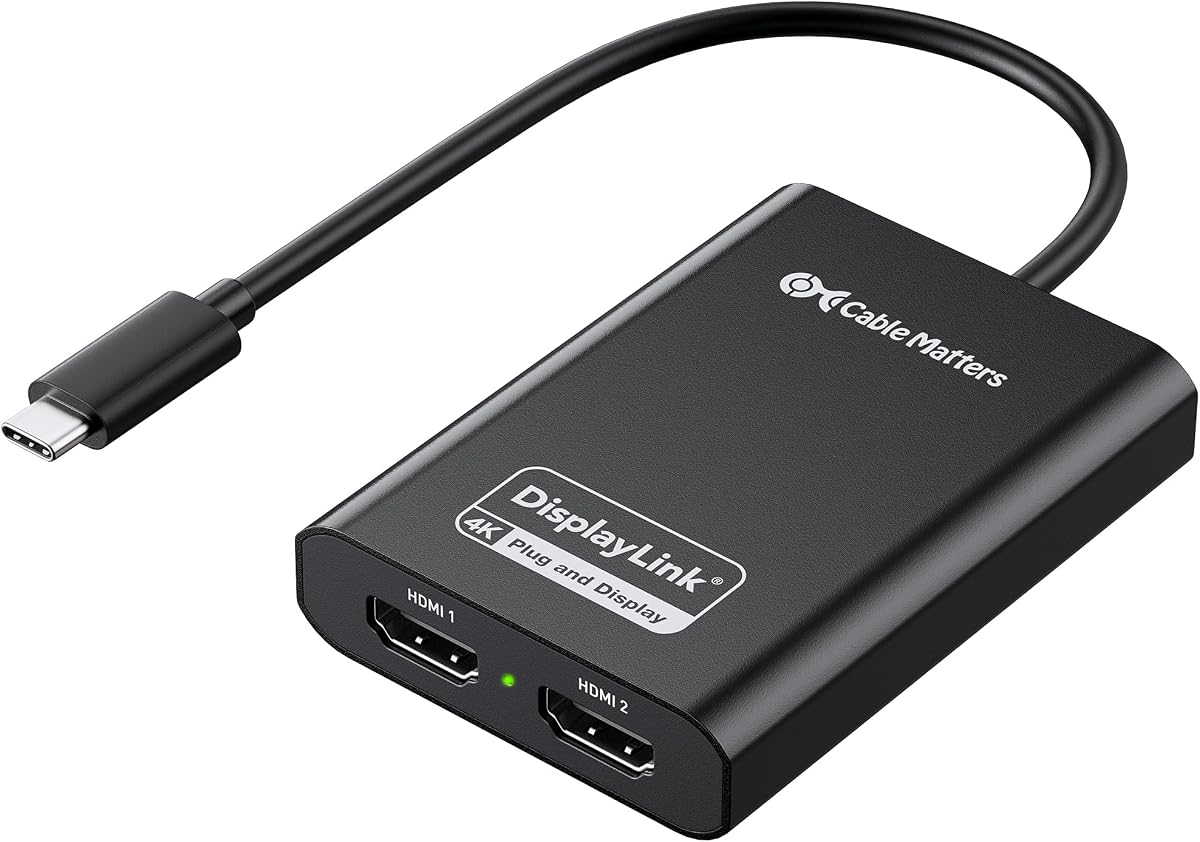
Cable Matters adapter is DisplayLink Certified for dual 4K 60Hz performance. Rated 4.0 it works with Windows and macOS. Requires newer Intel CPU for best results.
We may earn a commission when you buy through this link, at no additional cost to you.
The aluminum housing dissipates heat efficiently. Eliminates flicker for smooth multitasking. Mac users must install DisplayLink Manager. HDCP is not supported.
Performance varies based on CPU and memory. Ensure compatible hardware before purchase. The durability and certification provide confidence for daily use.
Buy for reliable certified dual display expansion. It is suitable for modern laptops needing smooth external video outputs.
DisplayLink Certified ensures compatibility and performance standards are met.
Premium aluminum enclosure helps maintain stable performance over time.
We may earn a commission when you buy through this link, at no additional cost to you.
Sonnet adapter supports 4K 60Hz and up to 144Hz for lower resolutions. Rated 4.4 it works with M1 MacBooks and Windows. Includes USB-A to USB-C adapter for versatility.
We may earn a commission when you buy through this link, at no additional cost to you.
Supports audio and allows 1440p at 144Hz for fluid motion. Connects to Thunderbolt or USB ports. Expands work and play area with multiple applications on screens.
Driver setup is necessary. HDMI cables are not included. This adapter is well suited for M1 users needing higher refresh rates.
Select for high refresh rate support and Mac compatibility. It provides versatile external video options for work and play environments.
Supports 144Hz on 1080p and 1440p displays for smooth visuals.
Includes USB-A to USB-C adapter for diverse port connectivity.
We may earn a commission when you buy through this link, at no additional cost to you.
Selecting the right adapter requires evaluating video output quality compatibility system requirements and additional features like charging and peripheral ports.
Ensure the adapter supports the resolution and refresh rate your monitors require. Dual 4K at 60Hz is standard but check HDMI 2.0 or DisplayPort support.
Higher resolutions need more bandwidth so USB 3.0 or USB-C with high throughput is essential for smooth performance.
Verify support for your operating system. Windows ChromeOS and macOS are common but Linux or iOS might not be supported.
Check if drivers are required or if plug-and-play functionality exists for your platform before purchase.
Match the adapter to your laptop ports USB-C USB-A or Thunderbolt. Some adapters offer hybrid cables for flexibility.
More USB-C ports allow connecting to newer devices while USB-A support helps older laptops or shared workspaces.
If your device needs charging during use look for 100W Power Delivery ports built into the adapter.
This feature reduces cable clutter by powering the laptop while driving external displays simultaneously.
Check available USB-A or USB-C ports for keyboards mice and drives. Built-in ports save buying extra hubs.
Some adapters include audio jacks for microphones or headphones adding convenience to your setup.
Aluminum housings dissipate heat better and feel durable. Compact designs are ideal for travel.
Sturdy construction ensures longevity especially when connecting and disconnecting frequently during work.
Look for lifetime or multi-year warranties and accessible support teams. IT departments value reliable after-sales service.
Quality brands often offer better documentation and driver updates to resolve compatibility issues quickly.
Understand that HDCP content like Netflix may not work on DisplayLink adapters designed for productivity.
Choose standard adapters for streaming media but use DisplayLink for spreadsheets coding and business applications.
Install the DisplayLink driver from the official website before connecting the adapter. Ensure your system has the latest updates to avoid conflicts.
Connect the adapter to a USB 3.0 or USB-C port. Attach HDMI or DisplayPort cables to your monitors and adjust display settings in your operating system.
Avoid exposing the adapter to extreme heat or moisture. Regularly check cables for wear and disconnect when not in use to prolong lifespan.
Most DisplayLink adapters require driver installation for full functionality. Download the latest driver from DisplayLink's website. Windows and ChromeOS often support plug-and-play but macOS usually needs setup.
DisplayLink adapters generally do not support HDCP protected content like Netflix or Hulu. They are optimized for productivity and office work instead of media playback.
Yes many adapters bypass Apple's single display limit on M-series MacBooks. Ensure driver installation and system permissions are granted for dual extended displays.
Most adapters support 60Hz at 4K. Some support higher refresh rates like 144Hz for lower resolutions depending on your monitor capabilities.
Many models include USB-A or USB-C ports for connecting peripherals. Check product specs for the number of supported ports and data transfer speeds.
DisplayLink adapters typically output directly to each monitor rather than daisy chaining. You need separate cables to each screen for extended display mode.
Update DisplayLink drivers and graphics drivers first. Ensure USB bandwidth is not overloaded by other high-speed devices. Restart your computer after driver installation.
Most DisplayLink adapters do not officially support Linux but some users may get limited functionality. Check specific model compatibility on DisplayLink website before purchase.
Our top picks include ACASIS for Mac users WAVLINK for budget needs and Plugable for premium flexibility. Each brings unique advantages depending on your system.
Prioritize features like charging and peripheral ports based on your workspace requirements. Driver support and build quality should guide your decision.
Prices and availability change often so check current listings before buying. Select the adapter that aligns with your productivity needs and device compatibility today.