
UGREEN 8K@60Hz HDMI Displayport KVM Switch 3 Monitors 2 Computers
3.9Editor score
HDMI 2.1 and DP 1.4 inputs
Supports HDR10+ and G-Sync
Includes desktop controller for remote switching
Compare the top KVM Switch for Triple Monitors to find the best model for your setup with expert reviews on performance, compatibility, and features.
Finding the right KVM Switch for Triple Monitors is essential for professionals who need to manage multiple systems efficiently. These devices allow seamless switching between computers while sharing a single set of peripherals and displays.
We evaluated ten top-rated models based on resolution support, USB speed, and ease of use. Our analysis covers both basic HDMI setups and advanced docking stations that offer power delivery and network sharing.
Each pick highlights specific strengths and limitations to help you choose wisely. Keep in mind that product availability and pricing can change frequently, so verify details before purchasing your ideal solution.
3.9Editor score

4.9Editor score

4.5Editor score
This side-by-side comparison highlights key specifications across all ten models to help you identify the best fit for your specific workflow and hardware requirements.




This docking station offers an all-in-one solution for dual computer setups with triple monitors. It stands out with its USB C connection that handles video data and charging simultaneously.
We may earn a commission when you buy through this link, at no additional cost to you.
The 8K support ensures crisp visuals while the shared Ethernet keeps downloads running on the inactive PC. It includes high-speed USB ports and an SD card reader for maximum connectivity.
While it supports MacBooks for mirrored displays only, Windows users get full extended desktop functionality. The price reflects the premium features and robust build quality designed for heavy use.
Ideal for professionals needing a clean desk with powerful switching capabilities. It replaces multiple hubs and adapters making it a smart investment for complex workstations.
The USB C cable delivers up to 100W of power to your laptop while transmitting video data. This eliminates the need for a separate charger and reduces cable clutter significantly.
Unlike standard switches this model keeps both computers connected to the network. Background tasks like updates sync continue uninterrupted on the inactive system during your workflow.
We may earn a commission when you buy through this link, at no additional cost to you.
The UGREEN KVM Switch focuses on delivering top-tier visual performance for creative and gaming users. It supports both HDMI 2.1 and DisplayPort 1.4 inputs to maximize resolution options.
We may earn a commission when you buy through this link, at no additional cost to you.
With support for HDR10+ and VRR it ensures smooth tearing free visuals across three monitors. The included desktop controller allows you to place the switch away from your immediate workspace.
Some users report lower ratings possibly due to compatibility requirements with specific monitor setups. Ensure your cables meet the length guidelines for optimal signal stability and performance.
Best suited for users prioritizing visual fidelity and gaming features. It offers a premium aluminum design and robust connectivity for those willing to manage specific setup requirements.
This switch handles refresh rates up to 240Hz on HDMI ports ensuring fluid motion. High frame rates are critical for competitive gaming and fast moving video content.
The included controller can be placed anywhere on your desk for easy access. This keeps the main unit tidy and allows switching without reaching behind monitors.
We may earn a commission when you buy through this link, at no additional cost to you.
This budget friendly HDMI switch provides essential functionality for users managing two computers with three displays. It offers solid performance without requiring complex setup or drivers.
We may earn a commission when you buy through this link, at no additional cost to you.
The 4K@60Hz support ensures clear visuals for daily tasks while the USB 3.0 ports enable fast peripheral sharing. A wired remote is included to simplify switching between systems.
It requires three HDMI cables per computer which can be cumbersome but ensures stable signal output. Lack of hotkey support is a minor trade-off for the affordable price point.
Perfect for home offices and students needing reliable multi-monitor switching. It delivers good value and essential features for those on a tighter budget.
Users can select between mirror and extend modes for their displays. This flexibility allows for efficient multitasking across multiple screens without switching configurations.
With four USB 3.0 ports you can connect multiple devices simultaneously. Printers scanners and webcams are easily shared between your two main systems.
We may earn a commission when you buy through this link, at no additional cost to you.
This model stands out by supporting four computers instead of the typical two. It is ideal for shared workspaces or small offices where multiple users access a common display setup.
We may earn a commission when you buy through this link, at no additional cost to you.
It supports high refresh rates like 4K@144Hz which is beneficial for graphic design and video editing tasks. The package includes necessary cables and a remote to streamline installation.
Setting up four sources requires careful planning regarding ports and cables. Users must ensure their graphics cards support multi-display output for optimal performance across all inputs.
Best for environments needing flexible computer sharing beyond standard dual setups. It offers strong performance and versatility for growing teams or multi user rooms.
Having four inputs allows multiple users to share the same monitor setup. This increases office efficiency by reducing hardware costs and space usage significantly.
The inclusion of cables and power adapter reduces extra purchase costs. This makes the initial setup process easier and faster for the end user.
We may earn a commission when you buy through this link, at no additional cost to you.
This switch targets users who demand the highest visual fidelity available. It supports both DP 1.4 and HDMI 2.1 standards to enable 8K resolutions across three displays.
We may earn a commission when you buy through this link, at no additional cost to you.
The inclusion of a power switch allows for quick resets without unplugging cables. This is useful when re-recognizing signals after long periods of inactivity.
Achieving 8K requires matching high-end graphics cards and specific cable lengths. Users should verify their hardware compatibility before purchase to avoid signal issues.
Ideal for creative professionals needing extreme detail. It offers premium video performance that justifies the investment for specialized workflows.
With 8K@60Hz capability you can view incredibly detailed content. This is perfect for high resolution design work and professional photo editing.
The power switch allows quick restarts if the device freezes. This feature adds a layer of convenience during daily troubleshooting.
We may earn a commission when you buy through this link, at no additional cost to you.
This docking station model offers similar features to the previous AV Access unit. It focuses on stability and high refresh rates suitable for both work and gaming.
We may earn a commission when you buy through this link, at no additional cost to you.
The shared Ethernet connection is a key feature for maintaining network tasks across devices. It ensures that downloads and updates continue even when you switch computers.
Mac users should note that extended displays are limited. Windows users benefit fully from the 480Hz support and robust USB data transfer rates.
Best for users needing a stable and clean workspace. It combines multiple functions into one device reducing the need for external hubs.
Unlike most switches this keeps both PCs online. This ensures background tasks are never interrupted during the switching process.
An SD card reader is built directly into the unit. This allows quick access to photos and files without extra dongles.
We may earn a commission when you buy through this link, at no additional cost to you.
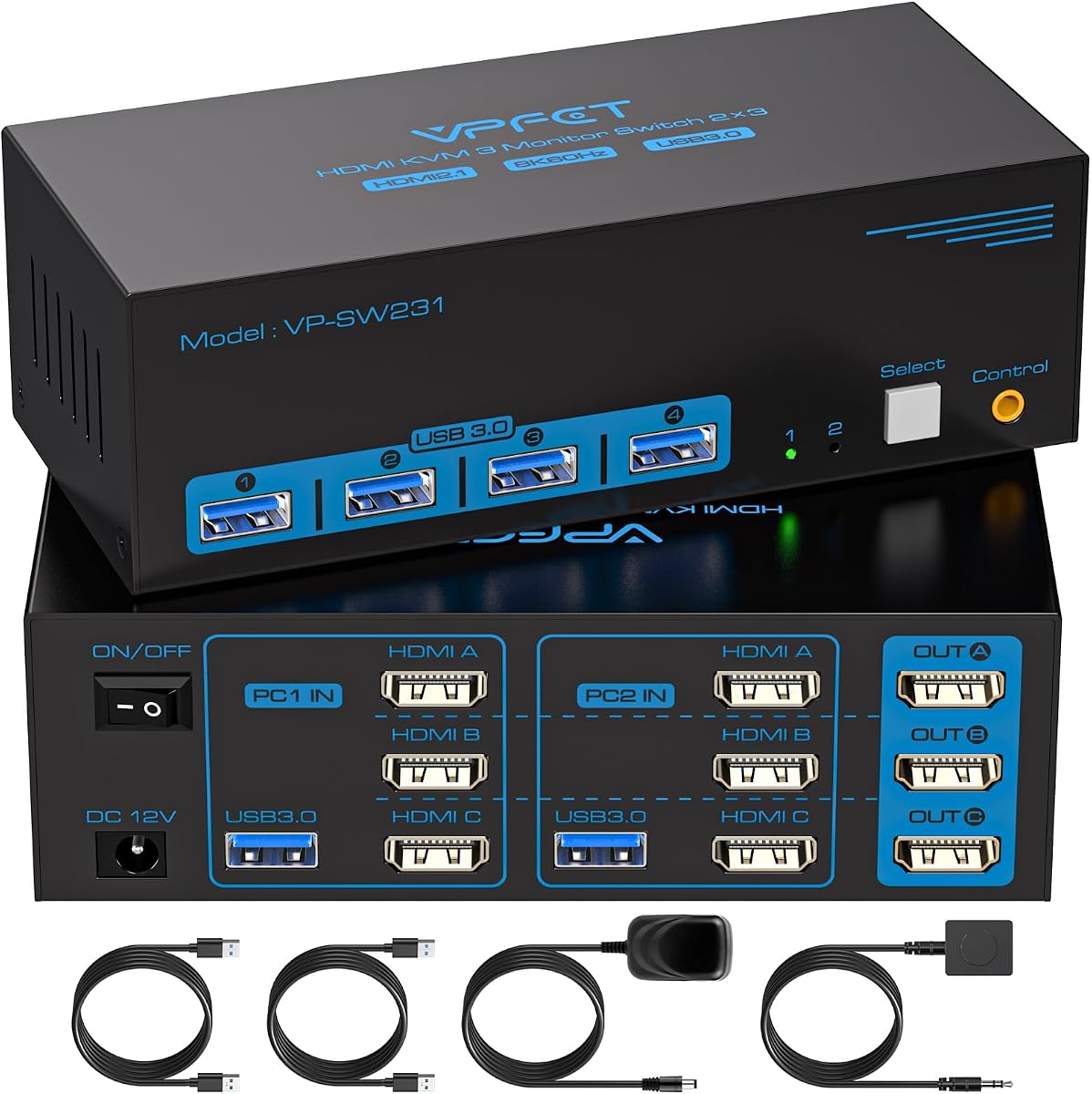
This model focuses on HDMI connectivity without DisplayPort mixing. It is ideal for users who have multiple HDMI monitors and want a straightforward solution.
We may earn a commission when you buy through this link, at no additional cost to you.
Supporting 8K resolution ensures high visual quality for modern displays. The wired controller allows convenient switching without reaching for the main unit.
It lacks DisplayPort inputs which limits flexibility for hybrid setups. But for pure HDMI users it offers strong performance and essential features.
Great for home entertainment systems and simple office setups. It provides reliable HDMI switching with good data transfer capabilities.
Focusing only on HDMI simplifies cable management. This reduces confusion about different cable types and ensures consistent connections.
The included remote makes daily switching effortless. It helps keep your desk clean by reducing access to the main box.
We may earn a commission when you buy through this link, at no additional cost to you.
This switch allows three computers to share one set of monitors. It is ideal for small teams or educational environments where multiple users share a display.
We may earn a commission when you buy through this link, at no additional cost to you.
Support for 8K and 144Hz ensures high performance for diverse needs. It includes all necessary cables to start using immediately after unboxing.
Setting up three inputs requires proper port availability on each PC. Users should verify their graphics cards before installation to avoid compatibility issues.
Best for schools or shared offices. It offers flexible sharing options that standard dual switches cannot provide.
Having three inputs allows flexible sharing in teams. This makes it perfect for meeting rooms or small collaborative workspaces.
Including USB cables simplifies the setup process. This ensures you have what you need for peripherals immediately.
We may earn a commission when you buy through this link, at no additional cost to you.
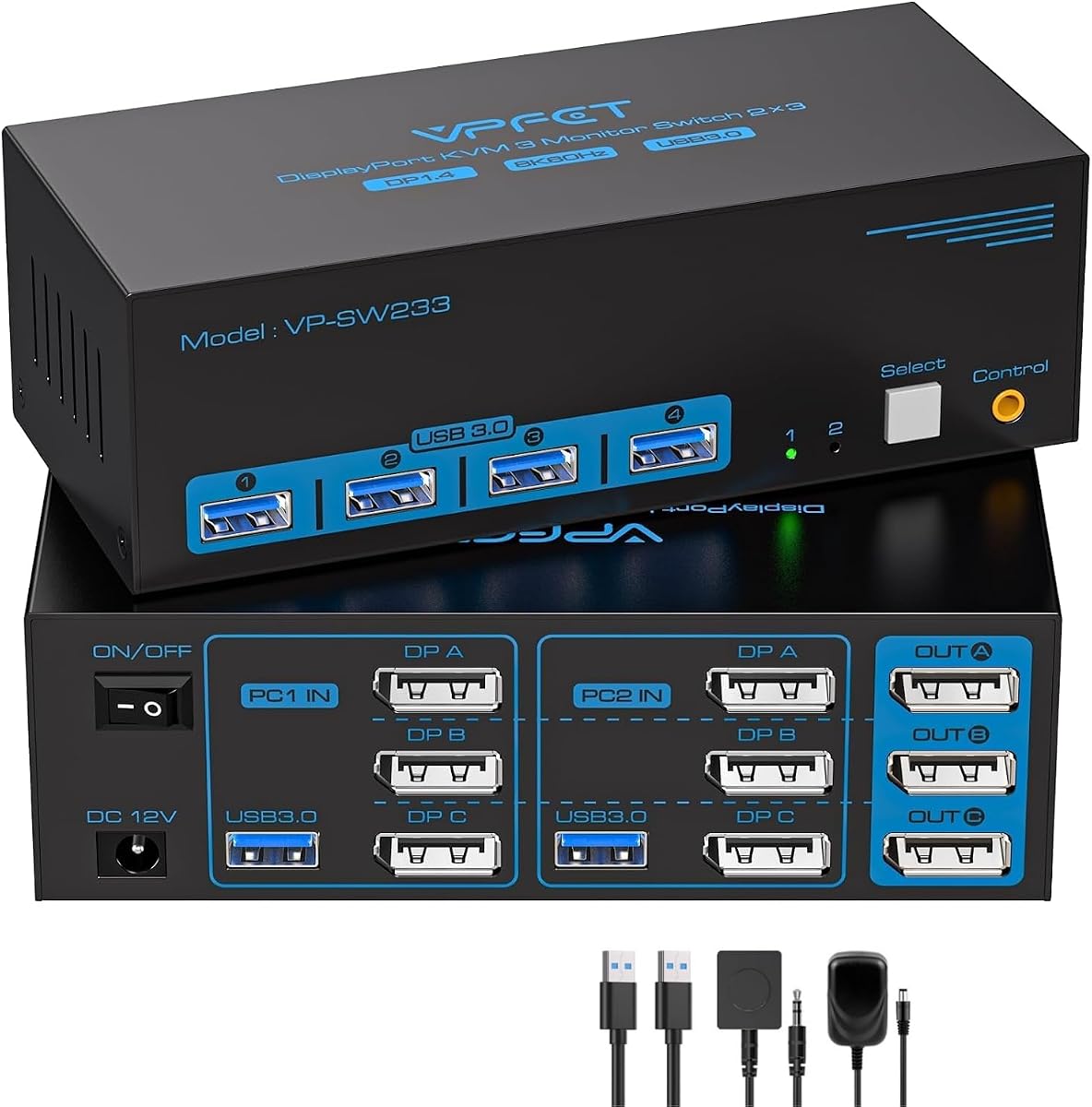
This model is designed for users who rely exclusively on DisplayPort connections. It offers stable high refresh rates ideal for graphic design and engineering work.
We may earn a commission when you buy through this link, at no additional cost to you.
The 144Hz support ensures smooth visuals during video playback or rendering. It connects directly to your monitors without the need for adapters.
Lack of HDMI inputs limits versatility for mixed setups. But for pure DP users it provides reliable and high performance switching.
Best for workstation environments with high quality displays. It ensures stable transmission for critical visual tasks.
This switch is optimized for DisplayPort standards. It ensures maximum signal integrity for users who require consistent performance.
With 144Hz support visuals remain fluid and smooth. This is crucial for designers who work with dynamic content.
We may earn a commission when you buy through this link, at no additional cost to you.
This versatile model supports both HDMI and DisplayPort inputs allowing flexible setups. It is a strong choice for users with mixed monitor configurations.
We may earn a commission when you buy through this link, at no additional cost to you.
The included cables simplify installation significantly. It offers 8K support and strong USB data transfer for efficient peripheral sharing.
Users should note that shorter cables ensure better stability at high resolutions. The LED indicator helps you confirm active systems quickly.
Ideal for most home and office environments. It balances features and price to provide a reliable switching solution.
Supporting both HDMI and DP increases flexibility. This allows you to connect different monitor types without adapters.
The inclusion of HDMI and DP cables saves money. This ensures you have everything needed to start immediately.
We may earn a commission when you buy through this link, at no additional cost to you.
Selecting the right KVM switch requires understanding your specific hardware needs and workflow demands.
Ensure the switch supports the maximum resolution and refresh rate of your monitors. For professional work look for models supporting 4K@60Hz or higher to maintain visual clarity. For gaming prioritize switches with support for 144Hz or 240Hz to avoid lag and stuttering.
Verify the model meets your monitor requirements to prevent signal degradation.
Check if your monitors use HDMI or DisplayPort and ensure the switch matches. Some switches support hybrid inputs allowing mixed setups. Confirm the number of computers supported and whether you need additional ports like USB-C for laptops.
Match input types to your existing hardware to avoid adapter complications.
Look for switches with USB 3.0 ports for fast data transfer with peripherals like hard drives and webcams. Ensure the number of ports matches your needs for keyboards mice and other devices. USB 3.0 is generally sufficient for most modern peripherals.
Prioritize USB 3.0 to ensure fast peripheral performance and compatibility.
Some switches require external power adapters especially for high bandwidth devices like external hard drives. Ensure the switch provides enough power to your USB devices. Lack of external power can cause devices to disconnect during switching.
Use an external adapter to guarantee stable power for high-demand peripherals.
Decide between panel buttons wired controllers or hotkeys. Wired controllers offer convenience by placing the switch out of reach. Hotkeys allow quick switching without touching the device but are not supported on all models.
Choose a switching method that fits your ergonomic setup and workflow.
Verify that the switch supports extended display modes for multitasking. Duplicate modes are useful for presentations but limit productivity. Ensure your computer graphics cards support the desired display mode to avoid configuration issues.
Confirm extended mode support for efficient multitasking across multiple screens.
High resolution signals require high quality cables of appropriate lengths. Long cables can cause signal loss especially at 8K. Use certified cables provided or recommended by the manufacturer for best results.
Use high quality certified cables to ensure stable signal transmission.
Check for aluminum construction and reliable connectors to ensure durability. A good warranty indicates the manufacturer stands behind their product. Durability reduces the risk of failure during intensive daily use.
Look for durable materials and warranty coverage for long-term reliability.
Connect your computers to the input ports and your monitors to the output ports securely. Ensure all video and USB cables are firmly seated to prevent signal interruptions. Use the provided power adapter if your model requires one for stability.
Switch between computers using the included remote or panel button. If issues arise check that all cables are correctly connected and that your graphics drivers are up to date. Restart the switch by unplugging power if needed.
Keep the switch clean and dust-free to maintain signal quality. Avoid placing it near sources of heat or direct sunlight. Regularly inspect cables for wear to ensure consistent performance over time.
A KVM switch allows you to control multiple computers using a single keyboard mouse and monitor setup. For triple monitors it enables one computer to manage three screens seamlessly. This simplifies workspaces and reduces cable clutter.
Not all computers have enough video outputs to support three monitors. You must check your graphics card specifications before purchasing a KVM switch. Most modern dedicated GPUs support multi-monitor configurations easily.
Some models support hybrid inputs allowing mixed HDMI and DisplayPort connections. This provides flexibility for different monitor types. Ensure the specific model you choose supports the mix of cables you need.
External drives often require more power than the computer USB ports supply. Use a KVM switch with an external power adapter to ensure stable power. This prevents devices from disconnecting during switching.
Compatibility varies by model. Some docking stations allow extended display only for Windows while MacBooks may be limited to mirrored displays. Always check product specifications regarding Mac OS support before buying.
Most modern KVM switches are plug and play requiring no drivers. They work immediately upon connection with most operating systems. This makes setup quick and hassle-free for users.
To reset a KVM switch unplug the power adapter and wait a few seconds before reconnecting. This clears any signal recognition errors. Most switches reset automatically when power is cycled.
Shorter cables generally provide better signal stability especially at high resolutions. If your desk setup allows use cables under two meters. Longer cables may require higher quality shielding to prevent signal loss.
Choosing the right KVM switch for triple monitors depends on your specific needs. Whether you need docking features for laptops or basic HDMI switching for desktops these reviews offer clear guidance.
Prioritize resolution support power requirements and compatibility to ensure smooth daily use. Investing in quality hardware reduces frustration and boosts productivity in the long run.
Remember to verify all specifications and current pricing before purchasing. Product details may change so staying informed ensures you get the best fit for your workspace.